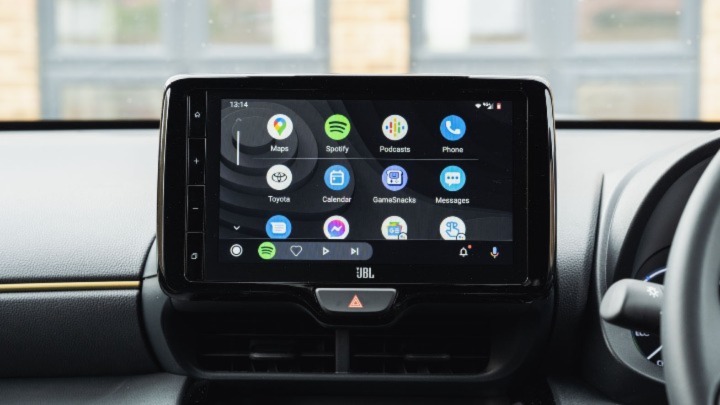
You're about to hit the road; you've got all your tunes loaded, and you'll probably catch up with the office at some point during the trip. But how do you safely access these features on the road?
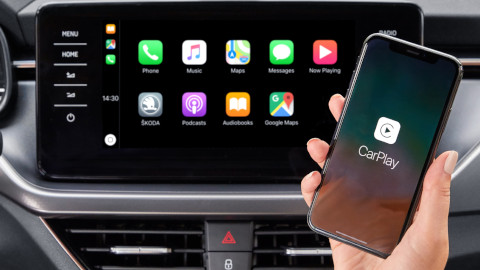
Smartphones and apps are constantly being updated and improved, making it difficult for car manufacturers to keep up. Android Auto and Apple CarPlay solve this problem. These systems have been developed to let drivers mirror their apps, navigation, music, and more onto the car's infotainment system, making your journey easier and safer.
In this complete guide to Android Auto, we've highlighted the key information you need to make the most of Android Auto and stay connected while you drive.
- What is Android Auto?
- Android Auto features
- How does Android Auto work?
- Which cars offer Android Auto?
- How to setup and connect Android Auto
What is Android Auto?
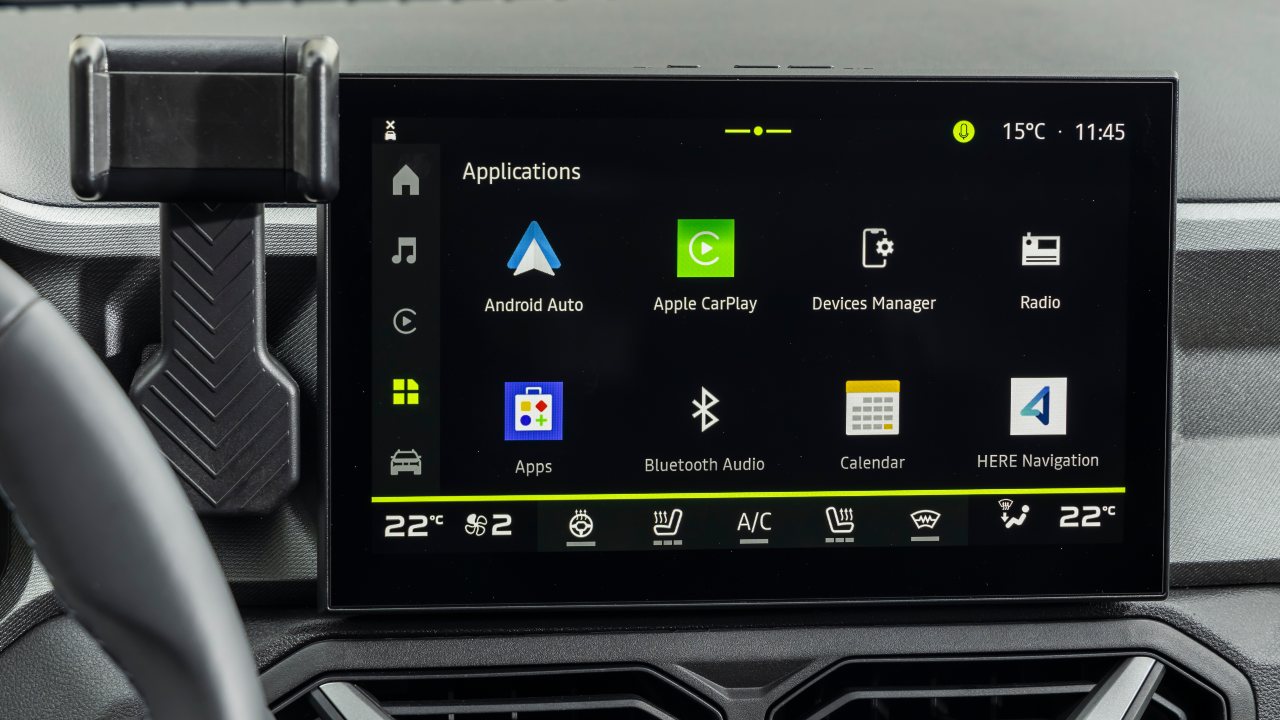
Android Auto is a smartphone mirroring platform that connects your phone, wired or wirelessly, to your car's infotainment system. It's already built into the latest Android models and is available as a downloadable app for older devices. It's essentially the Android version of the popular Apple CarPlay, which comes with all iPhones. Launched in 2015, Android Auto requires a car from 2015 or newer to work, unless retrofitted.
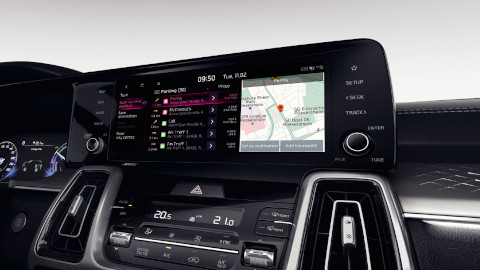
More advanced than Bluetooth pairing, it works by projecting a simple, driver-friendly version of your device onto your car’s central infotainment display, giving you access to the apps you may need during your everyday travels.
You can then safely access your apps or make calls by interacting with the touchscreen or using voice commands, rather than your phone's screen. On some cars, there are buttons on your steering wheel; using any of these methods is much safer and won't break the law.
Android Auto is especially welcomed by many drivers on long-haul journeys. It makes features such as music and navigation easy to operate throughout the trip - right at your fingertips or your voice commands.
Android Auto Features
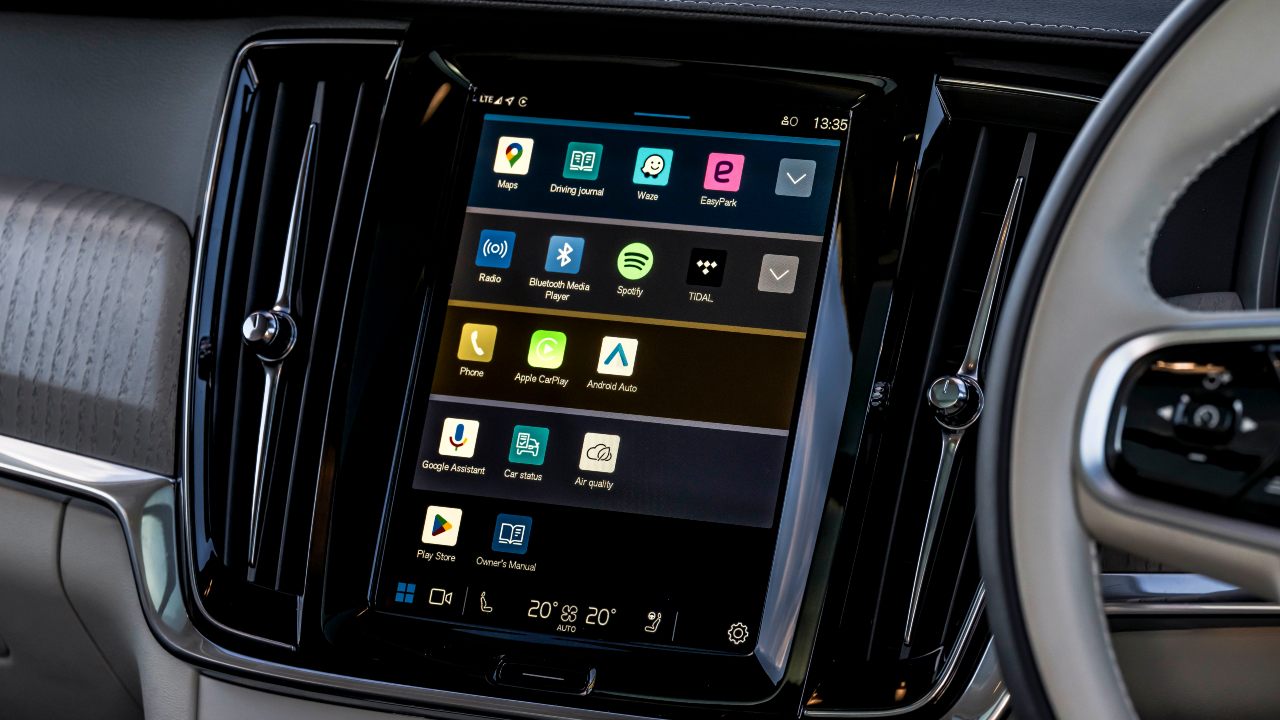
Android Auto offers a plethora of features that enhance your vehicle's driving experience by providing a familiar experience by mirroring your smartphone's look and feel. Key features include:
Navigation
Navigation is one of the primary functions of Android Auto, with Google-developed apps such as Google Maps and Waze available alongside third-party options, including TomTom. These apps feature real-time traffic information, up-to-date routes, and roadwork locations, allowing you to continue your trip and avoid delays.
Music and Audio
For pure entertainment while you drive, Android Auto works with lots of music and radio apps, which include Spotify, BBC Sounds, and Amazon Music. This allows you to tune in to your favourite radio station, listen to your go-to podcasts, and access your most-liked digital mixtape. Giving you plenty of scope to be entertained, safely, commuting to work or on longer road trips.
Phone Calls and Messaging
Android Auto makes calling much easier. Using the touchscreen and voice commands, you can easily access your phone book and, without taking your eyes off the road, make phone calls without missing a beat. Many cars also have buttons mounted to their steering wheels that allow full control over making calls.
You can also text people using Google Gemini and issue voice commands, while messaging apps such as WhatsApp, Telegram, and Facebook Messenger are also available. These let you send messages via dictation, since Android Auto naturally restricts typing while driving for obvious safety reasons.
Vehicle Charge Planning
For those who drive plug-in hybrids and all-electric cars, you can access charging apps through Android Auto. Charging apps such as PlugShare, ZapMap, and Octopus Electroverse are available for all your charging needs in your PHEV and EV.
App Connectivity
Other apps also work seamlessly with Android Auto. Google Calendar can be accessed so that you can keep up to date with events and work-related tasks, while Microsoft Teams allows you to join meetings, audio-only, from your car.
How does Android Auto work?
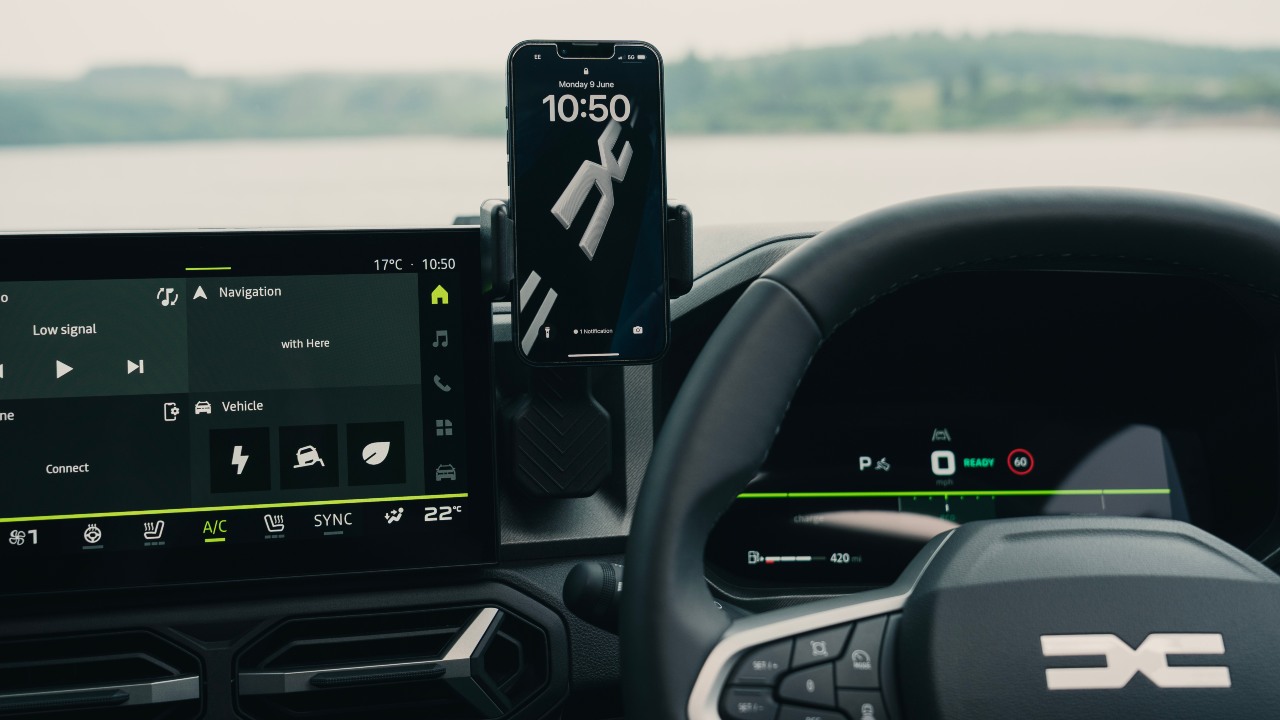
If you already know how to use your Android phone, getting started with Android Auto is pretty straightforward. The only real difference between using your phone and Android Auto is the layout and the fact that it's designed for use in the car, so everything you need to access is just a tap away.
It works by connecting your smartphone to your car's infotainment system using either Bluetooth or a USB cable. To use it, you can choose between voice commands, the car's touchscreen display, or the steering wheel controls, whatever is easiest. What's more, using the voice command option makes using Android Auto easier while driving, instead of taking your hands off the wheel to use the screen.
How to add apps to Android Auto?
When you first connect Android Auto to your infotainment system, you might only see a handful of apps on start-up. This is because not every app on your device is available for Android Auto. For example, Video and gaming apps are restricted to use only when the car is parked, for obvious reasons. And some don't even work at all.
To find apps that work with Android Auto, go to the 'Customise Launcher' feature in your phone’s settings to add apps to Android Auto. Here you'll find all the popular app categories that any driver will find useful. Navigation, charging, music streaming, and message apps that support Android Auto will be shown here. You'll find that some apps won't be supported, as Android Auto always prioritises safe, reliable driving.
Which cars offer Android Auto?
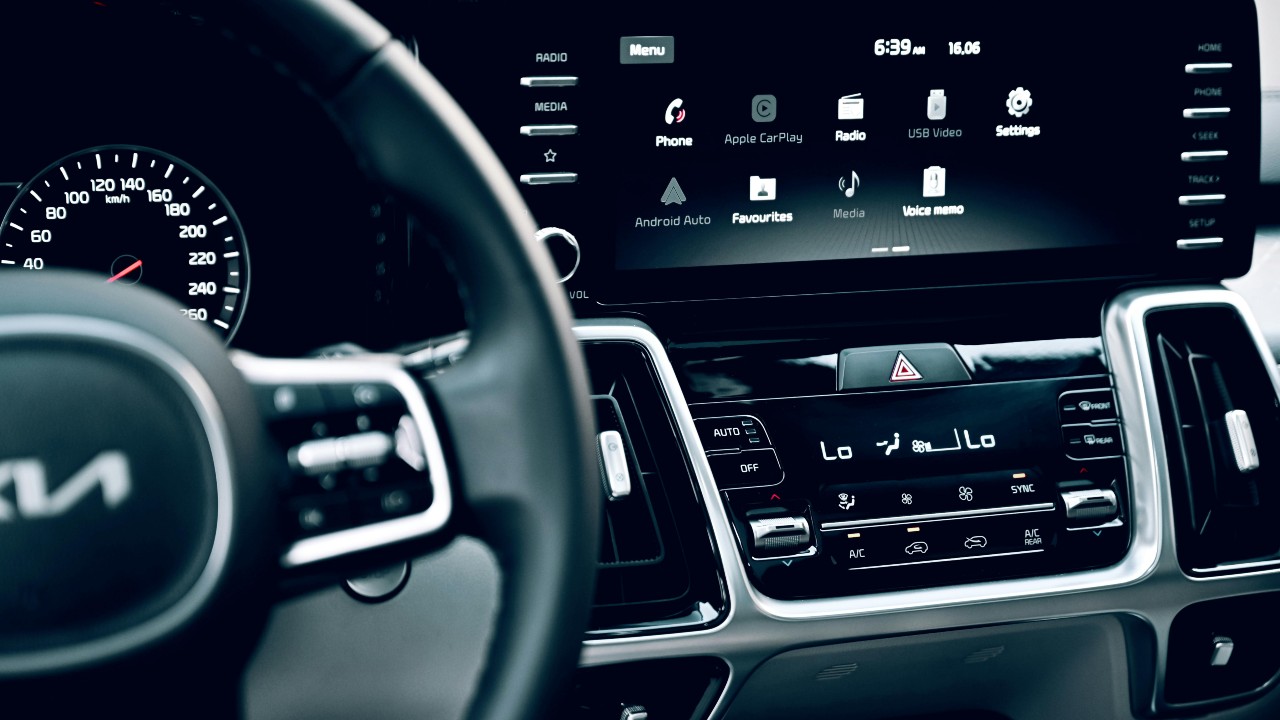
Practically all newer car models support Android Auto. For example, well-known models like the Citroën C3 Aircross and Alfa Romeo Giulia are definitely compatible, as are many vehicles from emerging brands such as JAECOO, Geely, and OMODA.
Some brands don't offer it as standard or don't offer the technology in their cars. You can check whether your car comes with Android Auto in the manual or by looking up its specifications online. Plus, the Android website lists all the cars compatible with Android Auto.
Android Auto became available in 2015, so even if you don't have a new or post-2015 car, you can get Android Auto added to an older car model by installing an aftermarket head unit. There's a range of brands that produce infotainment systems that run Android Auto, and once you have one of these units, it just needs to be installed in your car. If you do opt to do this, ensure that you find a reputable supplier that sets the system up in compliance with the laws of the road.
It's a bit less complicated with your phone, as all Android smartphones running Android 10 or later automatically have Android Auto built in. If your phone is running Android 9 or earlier, you'll need to manually install Android Auto from the Google Play Store.
How to set up and connect Android Auto
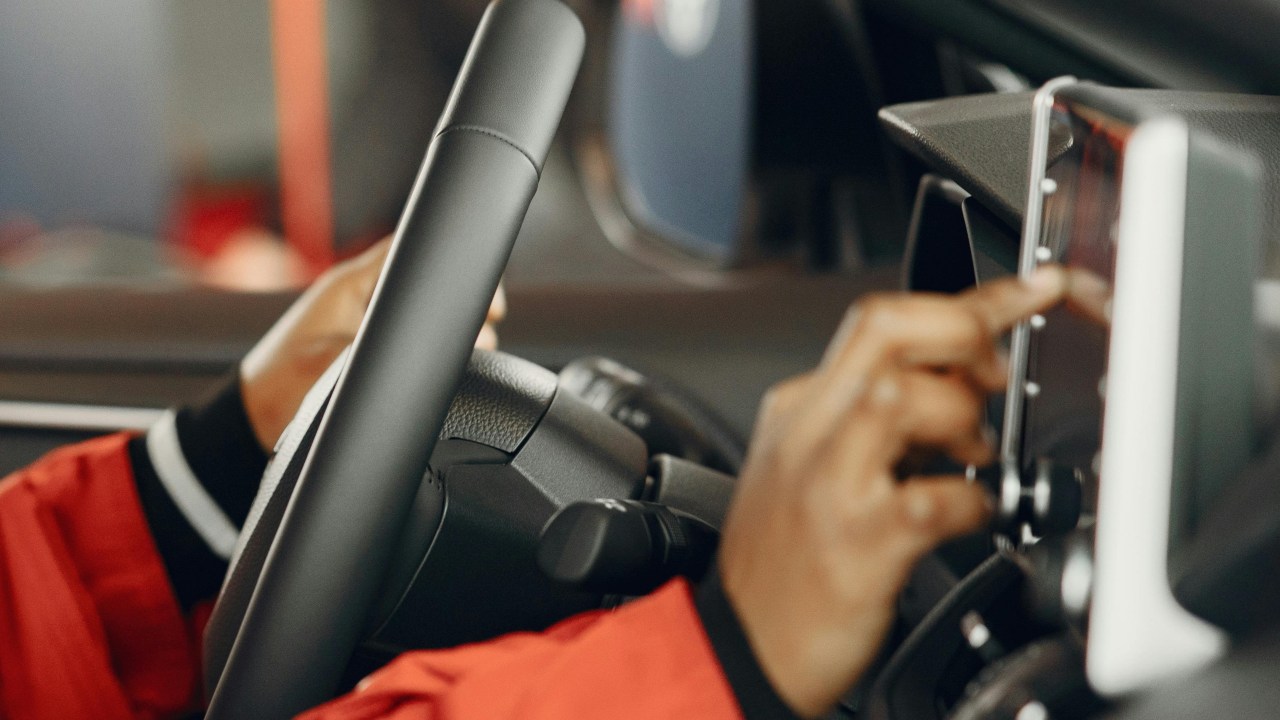
Once you know whether your phone and car are compatible with Android Auto, you can start connecting everything. Make sure you have a secure Wi-Fi or mobile data connection, then plug your phone into the infotainment system with the appropriate USB cable. From there, the instructions will appear on your touchscreen, allowing you to mirror your phone.
Setting up Android Auto for the first time
You will need to pair your phone using the USB cable the first time you use Android Auto. Some cars offer wireless connectivity after this, but it isn't available with every vehicle, so check your car's manual if you're unsure.
Once your phone is connected to the infotainment system via the USB cable, follow the instructions on the screen, which will be fairly simple, and you should be all set. If you're unsure of how to connect your Android phone, refer to the manual or your car brand's homepage.
Now that you've paired your phone with the car's infotainment system, it should pair automatically every time you get in, either when you turn on Bluetooth on your phone in the car or when you plug in the USB cable.
How to use Android Auto Safely while driving
To help avoid potential distractions whilst driving, not all the apps and features on your phone are available to use through Android Auto. There's still a wide range of apps supported, including Spotify, Google Maps, Waze, Audible, WhatsApp, and Facebook Messenger.
Gemini AI is available now and is used in place of its predecessor, Google Assistant. It's potentially the most useful for drivers, as it can handle more complex questions. It uses voice recognition to access features and apps hands-free. By saying “Hey Google”, you can get the AI assistant to do all the tasks for you, like make a call, play music, or direct you to your destination, so that you can steer your attention towards driving.
Can I use Android Auto wirelessly?
Not all cars can use Android Auto wirelessly over Bluetooth; some still require a USB cable to connect and use the system. However, most new cars offer wireless Android Auto connectivity either as standard, or an optional extra.
If it doesn't support wireless connectivity, you can sometimes use a plug-in Bluetooth adapter in a USB port to enable wireless connectivity. Check with the manufacturer's website or the manual to be sure.
To set up Android Auto wirelessly, first check that your car supports it. Activate Bluetooth and WiFi, then pair with your car's Bluetooth via the infotainment system. Confirm the pairing and follow the on-screen instructions to enable wireless Android Auto.
Why isn’t my Android Auto working?
Like all tech-based systems, problems occur from time to time, and if you're wondering why Android Auto isn’t connecting, here are some troubleshooting steps you can take to try to connect again.
Firstly, check that you have the latest version of Android downloaded. Most updates will fix phone troubleshooting issues. You can check that you have the latest version by visiting the Google Play Store. And of course, if your Android phone doesn't need updating, your infotainment system might. Again, head to the settings page on your vehicle or check the manual for instructions on updating your system - you may need to visit a retailer to support with the update.
If either of these fixes hasn't worked, next check your USB cable (if you use one) or your Bluetooth and Wi-Fi connections. And if you normally use Bluetooth, try a cable connection to see if that works instead. If none of these options works, go into your phone's settings and 'forget all cars' and try reconnecting the whole system from scratch.
Frequently asked questions
Check your car's manual or manufacturer's website to see if your car is compatible with Android Auto. You can also visit the Android website to see if your car's make and model are listed.
Yes. In some cars, retrofitting Android Auto is possible. You can either install an aftermarket head unit or use a portable dashboard touchscreen. The best way would be to contact a professional audio fitter and see if it can be upgraded to Android Auto - also ensure that any system you do choose to install is compliant with the law and doesn't void any warranty you have on the vehicle.
You can turn off Android Auto in a few ways, but it all depends on your device and car. On your phone, go to Settings > Apps > Android Auto and tap Disable or turn off permissions. There are other ways to disconnect it, such as removing the USB cable or selecting 'forget this car' on the phone.
Yes, Android Auto is completely free to download from Google with no monthly subscription fees. All new Android phones have it already installed, whereas older phones need to download it from the Google Play Store.
No. Android Auto does not currently support watching videos from YouTube, Netflix, or other streaming services while driving or when parked. Video playback is restricted to reduce distractions and improve road safety while driving. However, it has enabled YouTube audio while driving, with no visuals.
Yes, Android Auto uses a lot of data when streaming music, podcasts, or radio stations, as well as when running other apps such as navigation, charging, and messaging. You'll need plenty of mobile data on your monthly plan if you use Android Auto constantly while driving.
Why Android Auto is a smart choice for your car
If you're an Android smartphone owner and you use a car often, Android Auto is a smart choice. It streamlines the infotainment and uses a familiar layout (like your phone), making it easier to navigate than some of the more advanced in-built infotainment systems.
It gives you access to the apps you're used to, which will integrate seamlessly into your car. If you're unsure whether your next car will support Android Auto, check with your local Evans Halshaw retailer, where our team can show you new and used cars that do support it.